
This is the continuation of my first post about continuous integration and continuous delivery in Azure DevOps. You can read the first part here: Continuous Integration and Continuous Delivery pipeline in Azure DevOps for Azure App Service – Part I.
In this post, I will create the release pipelines to deploy the ASP.NET Core Web API into an Azure App Service.
Creating the Release Pipeline
In your project page inside Azure DevOps, you must select Pipeline + Releases. Then, you must click on the blue “New pipeline” button to create a new delivery pipeline for your project.
You will be prompted to the “Select a template tab” to either choose a template for you release or start from scratch by choosing “Empty job”. In our case, we will select “Azure App Service deployment” from the template list as shown in the following image:

Azure DevOps will create a default release pipeline. Now, we need to customize it a little bit.
Customizing the Release Pipeline
For our purposes, we must perform the following steps towards creating a release that fits our needs:
- Adding an artifact: We must click on “Add an artifact” in “Artifacts” box. On the pane, we must pick “Build” as source type. In source, we should select the build that we created previously (in this case, the build we created in the previous post). The pane might look like this:

- Enabling the Continuous deployment trigger: In the added artifact, we must click on the lightning. Then, in the right pane that will appear, enable the continuous deployment trigger.
- Selecting a trigger: Now, we must tell to Azure DevOps which is the trigger that rises the release process. Hence, in the Stage box, we must click on the lightning+user icon. Then, in the right pane select “After release”.
- Digging into the release steps: Now, click on the link that should be “1 job, 1 task” go into the release steps.
Adding more steps to the Release
The final picture of our Release will be like this:
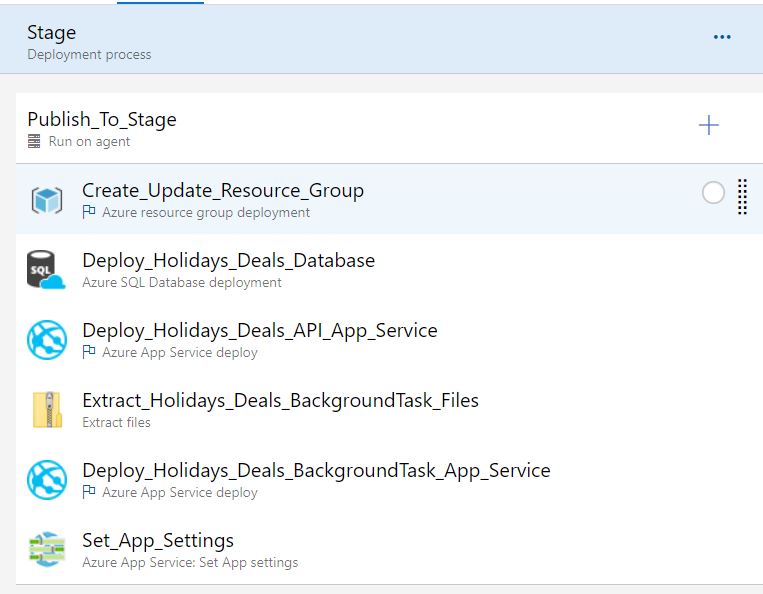
I will dig into every step:
- Create_Update_Resource_Group: This enables us to create the resource group in Azure based on our ARM templates. Here we must tell to Azure DevOps our Azure Subscription, Action (in our case Create or update resource group), the resource group name, location, the template location (in our case, since we have our ARM template in our artifact, we must select “Linked artifact”), the path where the template.json file is, the path where the parameters.json file is and finally, we must fill out the values for the template parameters in the “Override template parameters” box. This last option is quite awesome because it allows you to configure different kind of tiers for your resources depending on the environment your are working on. For instance, for you development environment, you may want to use cheaper resources than in your production environment. The configuration may look like this:
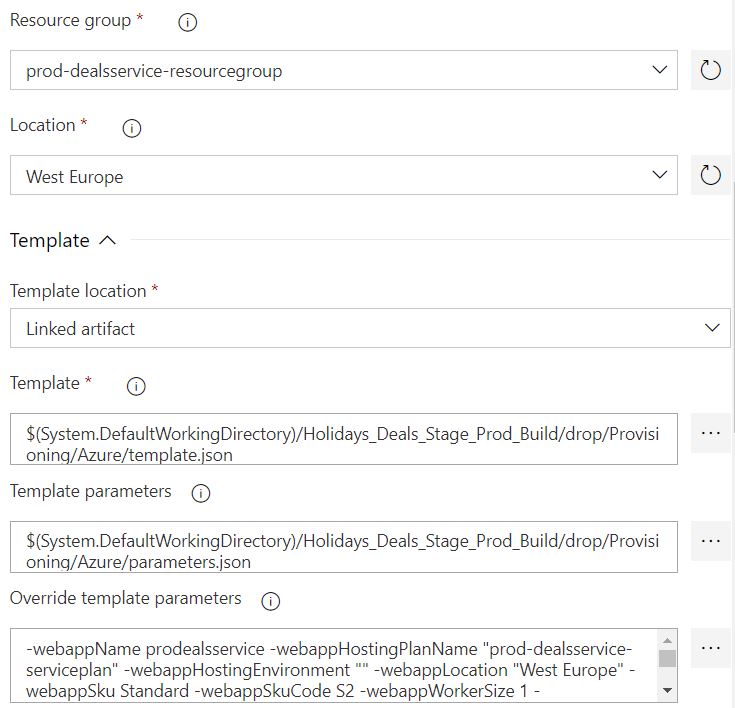
- Deploy_Holidays_Deals_Database: This steps is aimed to create/update the Web API database based on the dacpac file created during the build process. You can set the database name, admin user and password. Here is what it looks like:

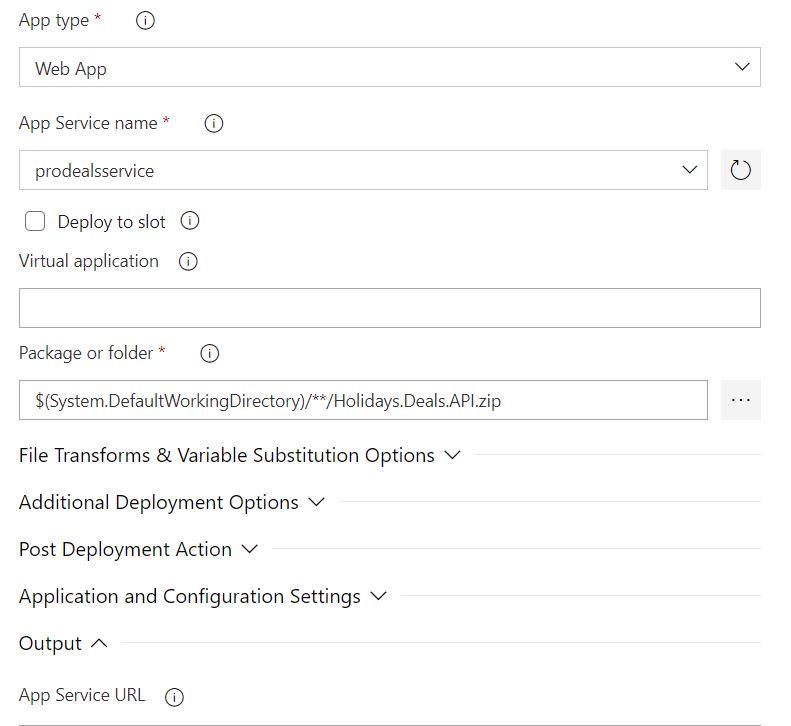
- Deploy_Holidays_Deals_API_App_Service: Here is where we are going to instruct Azure DevOps to deploy our Web API into an App Service tier. Configuration is pretty easy and straight forward.
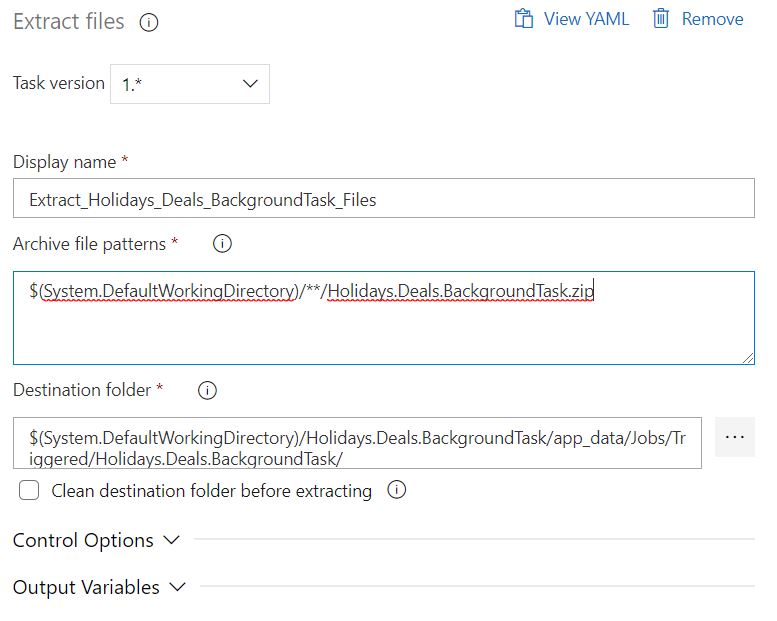
- Extract_Holidays_Deals_BackgroundTask_Files: For our application, we need to deploy the WebJob we developed to run a background task under our App Service. Since in the build process to instruct Azure DevOps to create a .zip file with all deployable files for our background task, now we need to unzip those files and place them in a destination where we can push them into the App Service. This is the duty this task accomplish.
- Deploy_Holidays_Deals_BackgroundTask_App_Service: We now need to deploy the background application into the same App Service we are going to have our Web API (you can use a different approach, such as having separated App Services for your Web API and background task). Our approach is having a console application as a background task process. You can learn more about WebJobs and its implementation in this link.

- Set_App_Settings: Last step is to set App Settings. For this task, I have selected a task from the Marketplace known as “Azure App Service: Set App Settings”. This offers me an easy-to-do way to set up the configuration values needed by my applications.
Finally, we may want to set a meaningful name for our releases. This very depends on your preferences, but it is highly recommended to do it in a way that helps you identify with easy your releases in case of a rollback or something similar.
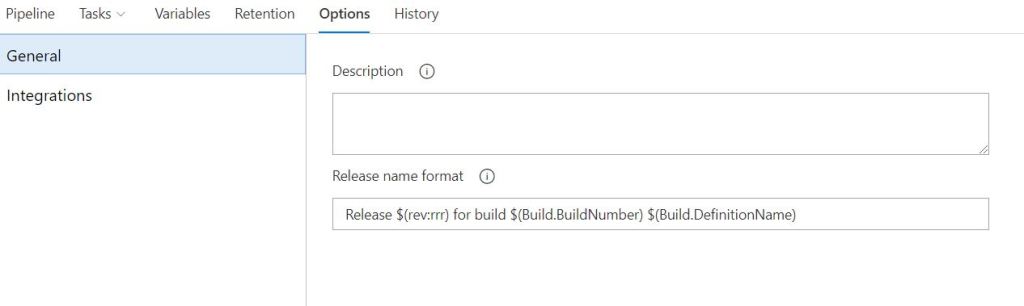
That is all we need to do. From now on, every time a build finishes successfully, a release will be trigger and deploy all necessary resources to Azure. You can include an approval procedure and other stages and environments.
 Vicluar Daniel Merchan